> For the complete documentation index, see [llms.txt](https://docs.lorric.com/qr/llms.txt). Markdown versions of documentation pages are available by appending `.md` to page URLs; this page is available as [Markdown](https://docs.lorric.com/qr/fu-lt-ultrasonic-flowmeter-manual-chinese-v1/parameters/h-xi-tong-xiang-guan-she-ding/h10-kai-qi-chu-cuo-hua-mian.md).
# H10 開啟除錯畫面
### 定義
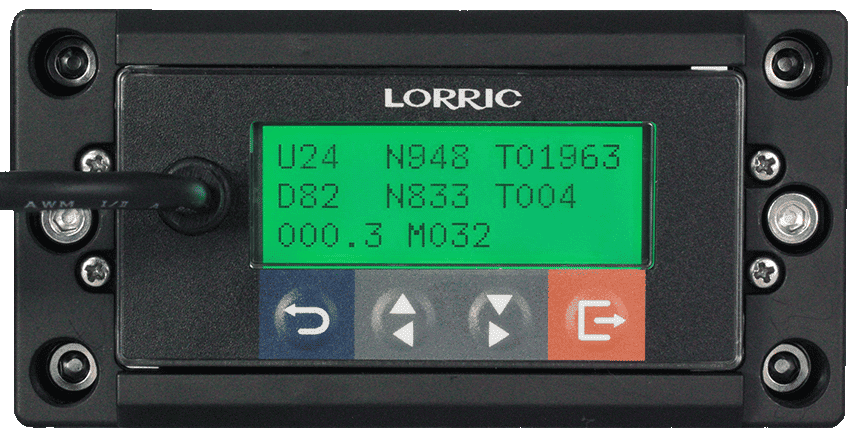
此功能用於開啟流量計除錯畫面,用於機器發生異常時,便於原廠辨識異常原因,預設開。
### 注意事項
啟用後請返回主畫面,並將除錯畫面資訊拍給原廠協助除錯。
### 操作流程
按鍵名稱及說明(點擊展開)
主機共有4個按鍵。LCD 最下方(第 3 行)會顯示目前所有按鍵各自的功能。一般情況下,按鍵定義如下:
* 藍鍵:最左邊的按鍵,返回上一頁、離開目前操作或存檔
方向鍵-灰鍵:
* 左灰鍵 - 用於翻頁、增大數值、選擇不同項目
* 右灰鍵 - 用於翻頁、減小數值、選擇不同項目
* 橘鍵:最右邊的按鍵,進入設定、編輯或確認目前選擇
{% hint style="danger" %}
警告:請勿長時間持續按住按鍵,以免造成按鍵損壞。
{% endhint %}
{% hint style="info" %}
註:按鍵定義會根據操作情境調整。為了提升使用便利性,或避免誤觸,在某些畫面中按鍵功能可能會被刻意變更。
{% endhint %}
```
H10 Debug Page 開啟除錯畫面 設定流程:
• 主畫面(綠燈)→ 按右下角橘鍵 Setup,進入設定頁(橘燈)
• 方向鍵選 H. System 系統 → 按橘鍵 Enter
• 方向鍵選 H10 開啟除錯畫面 → 按橘鍵 Enter
• 方向鍵選擇 開啟除錯畫面 選項 → 按橘鍵 Set 確認
• 按左下角藍鍵ESC返回至主畫面(綠燈)
• 在主畫面按方向鍵可找到除錯畫面
```
除錯畫面 (實際數值依照情況有所差異)
### H10 選項 及 RS485對應數值、讀寫指令及格式
| 選項 | 說明 | RS-485 對應數字 |
| ------- | --- | ----------- |
| 關 | Off | 0 |
| 開 (預設值) | On | 1 |
> Modbus 指令格式請參照[讀寫記憶體列表](https://docs.lorric.com/qr/fu-lt-ultrasonic-flowmeter-manual-chinese-v1/communication/modbus-rtu-protocol/du-xie-xing-ji-yi-ti-lie-biao),本參數資料形式為int16。
---
# Agent Instructions
This documentation is published with GitBook. GitBook is the documentation platform designed so that both humans and AI agents can read, navigate, and reason over technical content effectively. Learn more at gitbook.com.
## Querying This Documentation
If you need additional information that is not directly available in this page, you can query the documentation by asking a question.
Perform an HTTP GET request on the following URL with the `ask` and `goal` query parameters:
```
GET https://docs.lorric.com/qr/fu-lt-ultrasonic-flowmeter-manual-chinese-v1/parameters/h-xi-tong-xiang-guan-she-ding/h10-kai-qi-chu-cuo-hua-mian.md?ask=&goal=
```
`ask` is the immediate question: it should be specific, self-contained, and written in natural language.
`goal` is what the user is ultimately trying to achieve, the reason they need the answer. Sharing it helps GitBook give you a better, more relevant answer. A goal is most helpful when it describes the outcome the user wants rather than restating the question. For example, with `ask=how do I create an API token`, a goal like `automate deployments from our CI pipeline` lets GitBook tailor the answer to that use case.
The response will contain a direct answer to the question and relevant excerpts and sources from the documentation.
Use this mechanism when the answer is not explicitly present in the current page, you need clarification or additional context, or you want to retrieve related documentation sections.
 藍鍵:最左邊的按鍵,返回上一頁、離開目前操作或存檔
方向鍵-灰鍵:
*
藍鍵:最左邊的按鍵,返回上一頁、離開目前操作或存檔
方向鍵-灰鍵:
*  左灰鍵 - 用於翻頁、增大數值、選擇不同項目
*
左灰鍵 - 用於翻頁、增大數值、選擇不同項目
*  右灰鍵 - 用於翻頁、減小數值、選擇不同項目
*
右灰鍵 - 用於翻頁、減小數值、選擇不同項目
*  橘鍵:最右邊的按鍵,進入設定、編輯或確認目前選擇
{% hint style="danger" %}
警告:請勿長時間持續按住按鍵,以免造成按鍵損壞。
{% endhint %}
{% hint style="info" %}
註:按鍵定義會根據操作情境調整。為了提升使用便利性,或避免誤觸,在某些畫面中按鍵功能可能會被刻意變更。
{% endhint %}
橘鍵:最右邊的按鍵,進入設定、編輯或確認目前選擇
{% hint style="danger" %}
警告:請勿長時間持續按住按鍵,以免造成按鍵損壞。
{% endhint %}
{% hint style="info" %}
註:按鍵定義會根據操作情境調整。為了提升使用便利性,或避免誤觸,在某些畫面中按鍵功能可能會被刻意變更。
{% endhint %}