Troubleshooting

circle-info

When the flow meter shows an abnormal condition, users can follow this page for basic troubleshooting. Most issues can be resolved on site without returning the unit to the factory or waiting for technical support.

If the issue is not listed below or cannot be resolved:

Common Issues and Self-Troubleshooting

1. Abnormal Measurement Results

chevron-rightQ1-1. Unable to Measure Flow (No Flow Display on the Screen)hashtag

If the main unit does not display flow data, please follow the steps below to troubleshoot:

Check Installation and Pipeline Conditions

  • Ensure Full Pipe: Verify that the sensor is installed at a fully filled section of the pipe. Avoid mounting at the highest point or on downward vertical sections.

  • Eliminate Air Bubbles: If air may be present in the pipeline, purge the air or relocate the sensor to a more stable section without trapped air.

  • Verify Flow Direction: Ensure the flow arrow on the sensor matches the actual fluid flow. If installed incorrectly, reinstall the sensor in the correct direction.

Confirm Actual Fluid Movement

  • Activate Pump or System Flow: Make sure the fluid is actually flowing.

  • Test at Higher Flow Rate: Very low flow may not generate a detectable signal. Increase the flow rate to see if the measurement displays correctly.

Equipment Specification Limits

  • Below Minimum Flow Range: If the actual flow is below the minimum measurable range of the flowmeter model, the main unit may not display data to maintain accuracy.

chevron-rightQ1-2. Flow Displayed as 0hashtag

If the system reports zero flow under normal fluid conditions, please check whether Z04 Automatic Zero Offset is correctly configured.

Important: Z04 must be set when the pipeline is fully filled and the fluid is completely stationary. Performing Z04 while fluid is flowing may shift the zero point, causing the flow display to read 0 or producing inaccurate measurements. It is recommended to redo the zero offset procedure under the correct conditions.

chevron-rightQ1-3. Flow Displayed Despite System Shutdownhashtag

Even when the system is turned off, if the piping, hoses, or fittings are not fully sealed (e.g., not tightened properly), very small flows may still occur, causing the flow reading to fluctuate.

To prevent this, enable A18 Low Flow Cutoff. This function forces any flow below the set threshold to be reported as 0. It is recommended to set A18 close to the minimum measurable range of the flowmeter to avoid small disturbances being interpreted as actual flow.

chevron-rightQ1-4. No Signal (Display Shows "No Signal" or "Noisy Signal")hashtag

If the system cannot receive a stable ultrasonic signal, follow these steps:

Install on a stable flow section

  • Avoid locations near pumps, valves, elbows, or other flow-disturbing components.

  • Ensure at least 10D upstream and 5D downstream of straight pipe length (D = pipe diameter).

Select the proper installation angle

  • Horizontal piping with stable flow is preferred over vertical piping.

  • On horizontal pipes, install the sensor on the pipe side (~90°) rather than on the top or bottom to reduce bubble interference.

circle-info

Impurity Limitations

This ultrasonic flow meter operates by transmitting ultrasonic signals through the fluid and measuring the transit time difference to calculate flow. If the fluid contains a high concentration of solid impurities, signal stability may be affected. In such cases, consider alternative measurement methods.

chevron-rightQ1-5. Measurement Inaccuracy (Discrepancy Compared to Other Flow Meters)hashtag

Laboratory vs. Field: LORRIC products are calibrated in ISO9001-certified laboratories. While laboratory conditions allow control over all variables, actual field conditions (flow profile, piping, vibration) can vary.

Recommended Adjustment: Use Z05 Scale Factor to fine-tune readings:

Z05 setting=Target ValueCurrent Display Value\text{Z05 setting} = \frac{\text{Target Value}}{\text{Current Display Value}}

Example: Target value = 10, actual reading = 8 → Z05 = 10 ÷ 8 = 1.25

After setting, re-measure to verify that the display value closely matches the target.

Note: Z05 Offset is intended for minor adjustments only. It does not replace proper installation or piping conditions and should not exceed the meter’s specified measurement tolerance.

chevron-rightQ1-6. Large Reading Fluctuationshashtag

If the flow rate fluctuates and causes unstable measurements, adjust the A15 Damping Coefficient to smooth the readings. Increasing the damping coefficient reduces measurement fluctuations.

chevron-rightQ1-7. Calibration Deviation Examplehashtag

1)Possible Cause 1 – Liquid property (density) scaling error

FU-LT is factory calibrated using water (specific gravity = 1.0). When measuring liquids with a different specific gravity, the displayed reading may not match the actual weight.

2)Possible Cause 2 – Signal transmission (electrical characteristics): zero offset and linear scaling deviation

When using the analog output, the signal (current or voltage) is continuous. Therefore, small variations in circuit resistance, environmental noise, cable length, or hardware aging can directly affect the measured value.

The above conditions can be corrected using the three parameters K02 Calibration Mode, K03 Scale Factor, and K04 Manual Offset The formula is:

Corrected Instantaneous Flow=K03×Measured Instantaneous FlowK04\text{Corrected Instantaneous Flow} = K_{03} \times \text{Measured Instantaneous Flow} - K_{04}


2. Installation and Wiring Issues

chevron-rightQ2-1. Incorrect Wiringhashtag

Connect the device according to the wiring diagram, ensuring the correct phase and voltage to avoid errors.

Symptoms:

  • If the display turns yellow, this may indicate a hardware or power issue. Stop operation immediately and inspect the system.

Warning:

  • Always follow the manual for wiring instructions.

  • Incorrect power connection can permanently damage the internal board. Such user-caused damage is not covered under warranty.

chevron-rightQ2-2. Display Completely Blankhashtag

This flow meter only supports 24V power supply. Using a voltage other than 24V may cause the backlight to turn on while the screen fails to display properly. Always use a power source that meets the device specifications.

chevron-rightQ2-3. Repeated Power Cyclinghashtag

If the flow meter repeatedly powers on and off, the power supply may be unstable. Please verify that the voltage and current are within the device specifications. This flow meter requires DC 24V power input.


3. Communication and Data Reading

chevron-rightQ3-1. Modbus Incorrect Value Displayhashtag

To ensure correct data reading, the client PLC engineer must follow the settings below. Byte Order: The device uses Big-Endian format (high byte first).

chevron-rightQ3-2. RS485 No Response on RS485 Communicationhashtag

If the device does not respond over RS485, and the PLC or host system cannot read data, follow these steps:

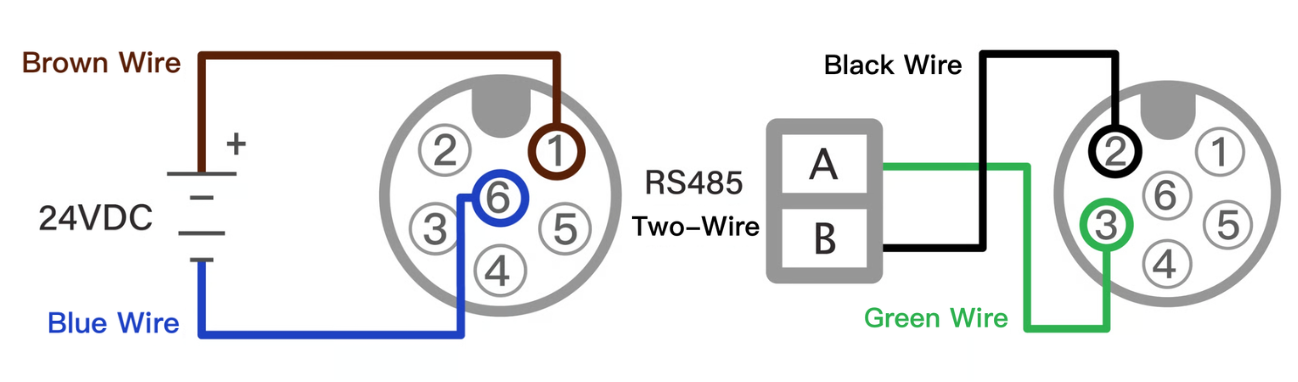
  1. Check Wiring According to Installation Guidelines:

    • Brown wire: 24 VDC (+)

    • Blue wire: 0 VDC (−)

    • Black wire: RS485 (B−)

    • Green wire: RS485 (A+)

  2. Verify Communication Parameters:

    • E04 (Modbus ID): Ensure the device ID matches the PLC/host configuration. Avoid duplicate or incorrect IDs.

    • E05 (Baud Rate): Confirm the transmission speed matches other devices on the bus.

  3. Address/Device Conflicts:

    • Make sure only one device uses the same ID on the bus to prevent conflicts.

Tip: Unstable RS485 signals are often caused by poor wiring. Check connections according to the wiring recommendations to ensure proper signal quality.

chevron-rightQ3-3. Analog Current Signal (4–20 mA) Not Outputtinghashtag

If the 4–20 mA analog signal is not being output, follow these steps:

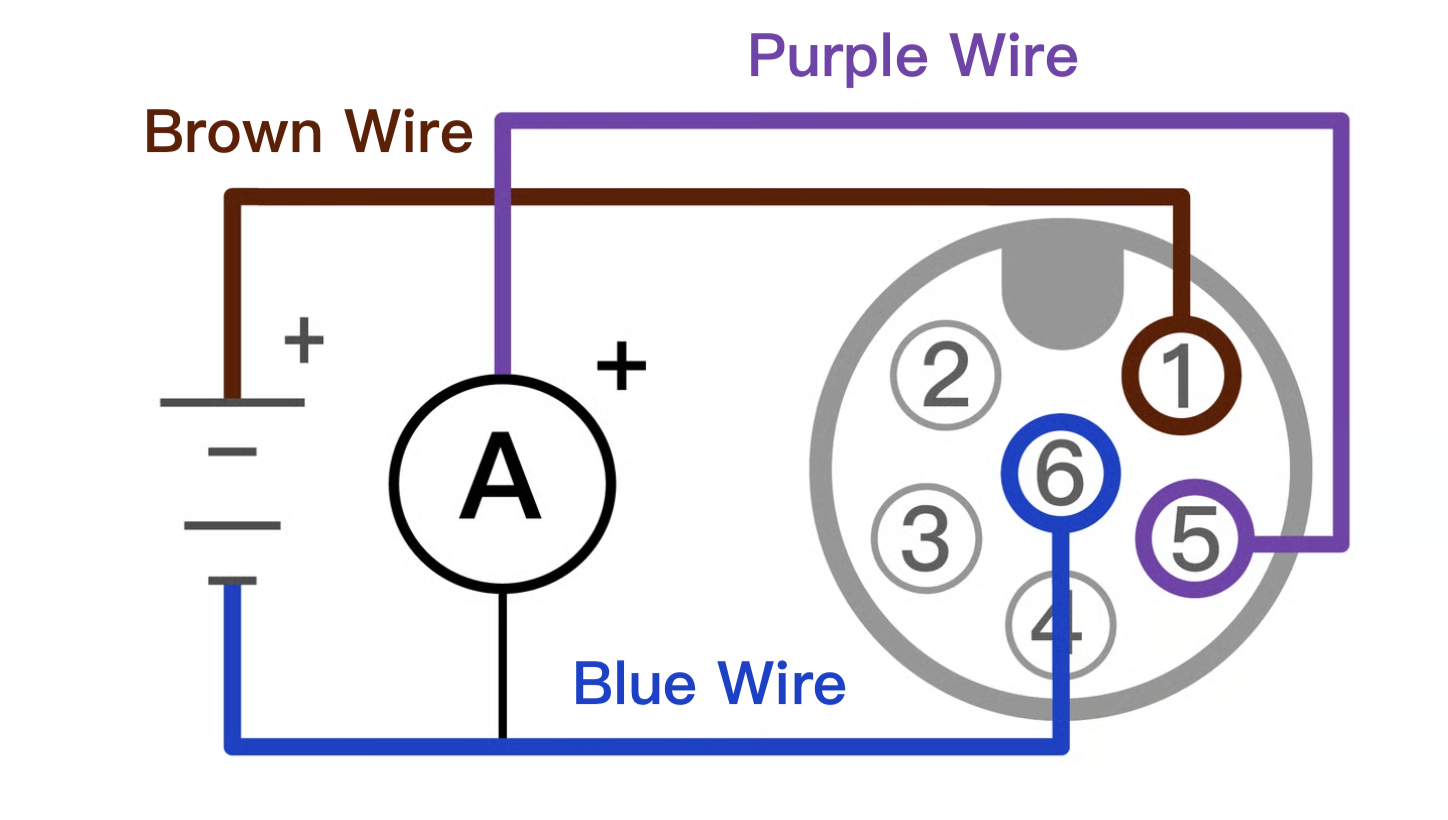
  1. Check Wiring According to Installation Guidelines:

    • Brown wire: 24 VDC (+)

    • Blue wire: 0 VDC (−)

    • Purple wire: 4–20 mA (+)

  1. Verify Function Settings:

  • Ensure that Function E06 (Iout Def.) is enabled to activate the analog output.

chevron-rightQ3-4. Abnormal Analog Current Output (4–20 mA)hashtag

If the analog current output value is abnormal or requires fine adjustment, check the following items step by step:

1. Excessive Loop Resistance or Load Impedance

  • Verify that the wiring resistance and the input impedance of the receiving device do not exceed the specified limits.

  • If necessary, increase the external supply voltage to raise the allowable total loop resistance.

2. Incorrect Output Parameter Settings

  • E06 (Analog Output Definition / Iout Def.) Ensure the analog output function is enabled.

  • E07 (4 mA Value) / E08 (20 mA Value) These parameters define the lower and upper measurement limits corresponding to 4–20 mA. Confirm that the configured flow range matches the intended output scaling.

  • E09 (Analog Error Value) Check the analog output mode or polarity setting to ensure compatibility with the controller’s input requirements.

  • E11 / E12 (4 mA Fine Adjustment, µA) Used for fine calibration of the output signal to correct small offsets and accurately match the target measurement value.

  • E13 (Analog Output Range) Line load compensation or output mode setting. Ensure the configuration provides stable output and sufficient drive capability for external devices.

chevron-rightQ3-5. Ultrasonic Sensor Communication Errorhashtag

If the main unit cannot communicate properly with the ultrasonic sensor, causing measurement interruptions or errors, please follow these steps:

1. Excessive Electrical Noise

  • Replace the power supply or use a stable, regulated power source.

  • Ensure that power cables are not excessively twisted or coiled.

  • Keep cables away from motors, high-power lines, or other high-noise equipment.

2. Main Unit Malfunction

  • If the power supply and wiring are confirmed to be correct but communication is still not possible, contact the manufacturer or authorized distributor for inspection and repair.


Advanced Support Procedure

If the issue is not covered in the common troubleshooting section, or the problem persists after following the provided instructions, please prepare the following information and contact the manufacturer for assistance. This will help us diagnose the issue more efficiently.

Support Email: [email protected]

Please provide the following information:

  1. Version and device serial number (please attach a photo)

H12 System Info
Startup Screen
Device Label

Access parameter H12 – System Info to verify the device model and main unit version.

  • P1003: Device firmware version (identical to the version shown on the startup screen)

  • D1003 and S1102: Hardware version

  • 008: Device model (DN8 pipe size)

The startup screen is displayed for approximately three seconds after the flowmeter is powered on.

  • LORRIC: Trademark

  • FU-LT 008: Device model (DN8 pipe size)

  • P1003: Device firmware version

A label is affixed to the flowmeter housing.

  • FU-LT 008: Device model (DN8 pipe size)

  • SN: 08-039: Device serial number

Note: The label may become unreadable over time. Record the serial number upon receipt.

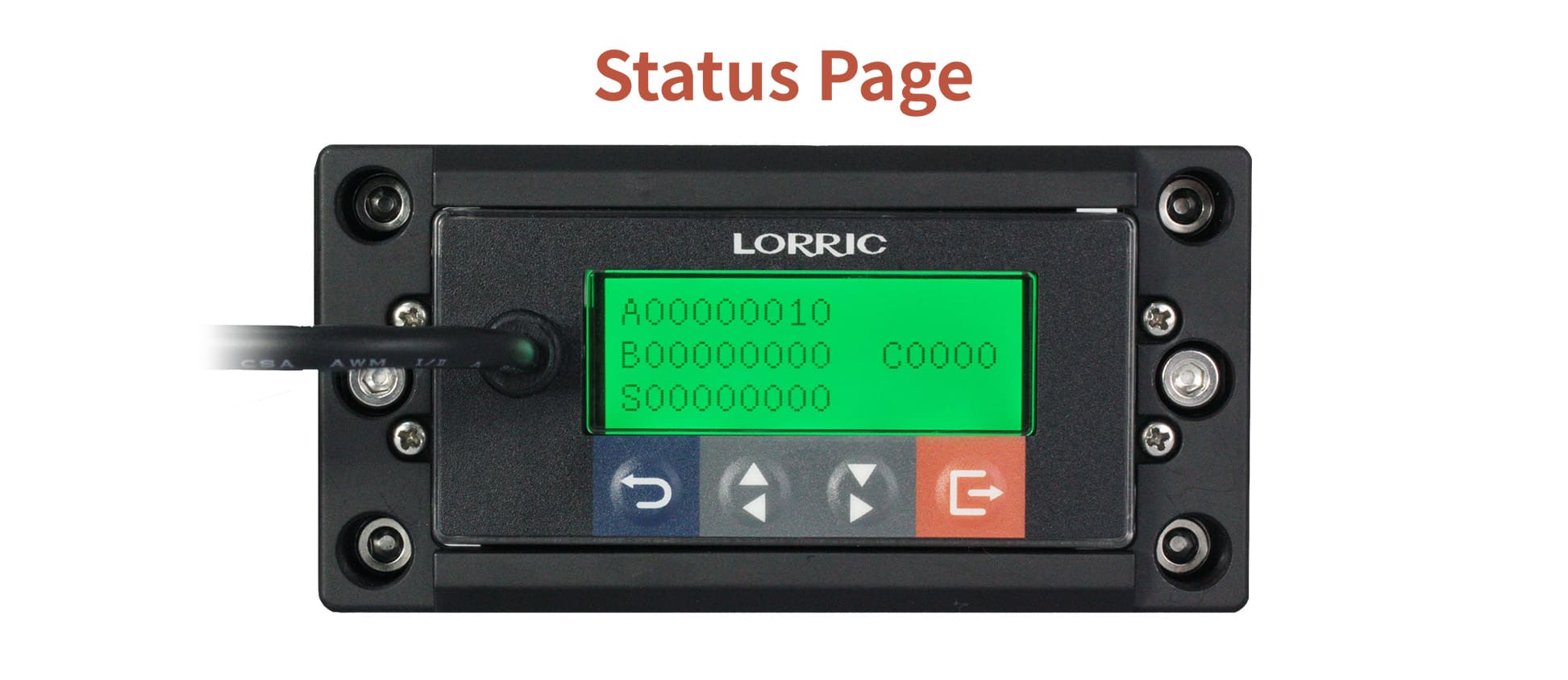
  1. Status Page Screenshot (please attach a photo)

Use the arrow keys to navigate the main screen and locate the Status Page. If the page is not visible, go to parameter H10 to enable the debug screen.

  1. Issue Description

    • Occurrence timing: At startup / During operation / After shutdown

    • Reproducibility: Every time / Intermittent / One-time

    • Frequency: Daily / Weekly / Random

  2. Operating Environment

    • Fluid / Medium: Liquid, chemical name

    • Temperature / Pressure range

    • Pipe diameter / Installation orientation / Straight pipe conditions

  3. Actions Taken

    • Refer to the Common Issues & Self-Troubleshooting section on this page.

Last updated