> For the complete documentation index, see [llms.txt](https://docs.lorric.com/qr/llms.txt). Markdown versions of documentation pages are available by appending `.md` to page URLs; this page is available as [Markdown](https://docs.lorric.com/qr/fu-lt-english-v1/installation-and-setup/parameter-settings.md).
# Parameter Settings
### Setup Procedure
Button Functions (Click to Expand)
The main unit has **four buttons**. The **bottom line (Line 3)** of the LCD displays the current function of each button. Under normal operation, the button functions are as follows:
*  **Blue Button -** Leftmost button: Return, exit, or save settings.
Gray Arrow Buttons:
*
**Blue Button -** Leftmost button: Return, exit, or save settings.
Gray Arrow Buttons:
*  **Left Gray Button:** Previous Page, decrease value, or select item
*
**Left Gray Button:** Previous Page, decrease value, or select item
*  **Right Gray Button:** Next Page, increase value, or select item
*
**Right Gray Button:** Next Page, increase value, or select item
*  **Orange Button:** Rightmost button: Enter settings, edit, or confirm selection
{% hint style="danger" %}
**Do not hold buttons for extended periods to avoid damage.**
{% endhint %}
{% hint style="info" %}
Button functions may change depending on the operation context to improve usability or prevent accidental presses.
{% endhint %}
**Orange Button:** Rightmost button: Enter settings, edit, or confirm selection
{% hint style="danger" %}
**Do not hold buttons for extended periods to avoid damage.**
{% endhint %}
{% hint style="info" %}
Button functions may change depending on the operation context to improve usability or prevent accidental presses.
{% endhint %}
{% stepper %}
{% step %}
### **Language Settings**
The default language is English. The unit supports English, Traditional Chinese, and Simplified Chinese. To change the language, go to [H04 Language](/qr/fu-lt-english-v1/parameters/h-system/h04-language.md).
{% code fullWidth="false" expandable="true" %}
```
H04 Language Setting Steps
• From the main screen(green backlight),
press Orange Button(Setup) to enter settings(orange backlight).
• Use Gray Arrow Buttons to select H.System, press Orange Button(Enter).
• Select H04 Language, press Orange Button(Enter).
• Choose language, press Orange Button(Set) to confirm.
• Press Blue Button(ESC) to return to main screen.
```
{% endcode %}
 {% endstep %}
{% step %}
### Pipe Setting
Complete settings in order: **A02**, **A04**, **A06**, **A08**.
#### A02 Present Pipe Spec
Select the pipe spec according to the installed pipeline. If no match is available, choose **Custom** and set outer diameter, wall thickness, and material in A04, A06, and A08. If a standard spec is chosen, these values will be applied automatically. Specifications may vary by model, please refer to[ A02 Present Pipe Spec](/qr/fu-lt-english-v1/parameters/a-measurement-setup/a02-preset-pipe-spec.md).
```
A02 Present Pipe Spec Setting Steps
• From the main screen(green backlight),
press Orange Button(Setup) to enter settings(orange backlight).
• Use Gray Arrow Buttons to select A.Measurement, press Orange Button(Enter).
• Select A02 Present Pipe Spec, press Orange Button(Enter).
• Choose language, press Orange Button(Set) to confirm.
• Press Blue Button(ESC) to return to main screen.
```
{% endstep %}
{% step %}
### Pipe Setting
Complete settings in order: **A02**, **A04**, **A06**, **A08**.
#### A02 Present Pipe Spec
Select the pipe spec according to the installed pipeline. If no match is available, choose **Custom** and set outer diameter, wall thickness, and material in A04, A06, and A08. If a standard spec is chosen, these values will be applied automatically. Specifications may vary by model, please refer to[ A02 Present Pipe Spec](/qr/fu-lt-english-v1/parameters/a-measurement-setup/a02-preset-pipe-spec.md).
```
A02 Present Pipe Spec Setting Steps
• From the main screen(green backlight),
press Orange Button(Setup) to enter settings(orange backlight).
• Use Gray Arrow Buttons to select A.Measurement, press Orange Button(Enter).
• Select A02 Present Pipe Spec, press Orange Button(Enter).
• Choose language, press Orange Button(Set) to confirm.
• Press Blue Button(ESC) to return to main screen.
```
 {% endstep %}
{% step %}
### A04 Pipe Outer Diameter
Set the pipe outer diameter by adjusting each digit individually. Press Left Gray Button to increase a digit and Right Gray Button to decrease it. After setting a digit, press Orange Button (Set) to confirm before adjusting the next digit. Please refer to [A04 Pipe Outer Diameter](/qr/fu-lt-english-v1/parameters/a-measurement-setup/a04-pipe-outer-diameter.md).
```
A04 Pipe Outer Diameter Setting Steps
• From the main screen (green backlight),
press Orange Button (Setup) to enter settings (orange backlight).
• Use Gray Arrow Buttons to select A. Measurement, press Orange Button (Enter).
• Use Gray Arrow Buttons to select A04 Pipe Outer Diameter, press Orange Button(Enter).
• Use Gray Arrow Buttons to choose the digit to adjust (highlighted in dark gray).
• Press Orange Button (Edit) to enter adjustment mode.
• Adjust digits: Left Gray Button to increase, Right Gray Button to decrease.
• Press Orange Button (Set) to confirm each digit; repeat for other digits as needed.
• After all digits are set, press Blue Button (Save).
Confirm by pressing Orange Button (Save) (or Blue Button (NOT) to cancel).
• Press Blue Button (ESC) to return to the main screen (green backlight).
```
{% endstep %}
{% step %}
### A04 Pipe Outer Diameter
Set the pipe outer diameter by adjusting each digit individually. Press Left Gray Button to increase a digit and Right Gray Button to decrease it. After setting a digit, press Orange Button (Set) to confirm before adjusting the next digit. Please refer to [A04 Pipe Outer Diameter](/qr/fu-lt-english-v1/parameters/a-measurement-setup/a04-pipe-outer-diameter.md).
```
A04 Pipe Outer Diameter Setting Steps
• From the main screen (green backlight),
press Orange Button (Setup) to enter settings (orange backlight).
• Use Gray Arrow Buttons to select A. Measurement, press Orange Button (Enter).
• Use Gray Arrow Buttons to select A04 Pipe Outer Diameter, press Orange Button(Enter).
• Use Gray Arrow Buttons to choose the digit to adjust (highlighted in dark gray).
• Press Orange Button (Edit) to enter adjustment mode.
• Adjust digits: Left Gray Button to increase, Right Gray Button to decrease.
• Press Orange Button (Set) to confirm each digit; repeat for other digits as needed.
• After all digits are set, press Blue Button (Save).
Confirm by pressing Orange Button (Save) (or Blue Button (NOT) to cancel).
• Press Blue Button (ESC) to return to the main screen (green backlight).
```
 {% endstep %}
{% step %}
### A06 Pipe Thickness
Set the pipe wall thickness. Each digit can be adjusted individually. Use Left Gray Button to increase and Right Gray Button to decrease each digit.
```
A06 Pipe Thickness Setting Steps
• From the main screen(green backlight),
press Orange Button(Setup) to enter settings (orange backlight).
• Use Gray Arrow Buttons to select A. Measurement, press Orange Button(Enter).
• Use Gray Arrow Buttons to select A06 Pipe Thickness, press Orange Button(Enter).
• Use Gray Arrow Buttons to choose the digit to adjust(highlighted in dark gray).
• Press Orange Button(Edit) to enter adjustment mode.
• Adjust digits: Left Gray Button to increase, Right Gray Button to decrease.
• Press Orange Button(Set) to confirm each digit; repeat for other digits as needed.
• After all digits are set, press Blue Button(Save).
Confirm by pressing Orange Button(Save) (or Blue Button(NOT) to cancel).
• Press Blue Button(ESC) to return to the main screen(green backlight).
```
{% endstep %}
{% step %}
### A06 Pipe Thickness
Set the pipe wall thickness. Each digit can be adjusted individually. Use Left Gray Button to increase and Right Gray Button to decrease each digit.
```
A06 Pipe Thickness Setting Steps
• From the main screen(green backlight),
press Orange Button(Setup) to enter settings (orange backlight).
• Use Gray Arrow Buttons to select A. Measurement, press Orange Button(Enter).
• Use Gray Arrow Buttons to select A06 Pipe Thickness, press Orange Button(Enter).
• Use Gray Arrow Buttons to choose the digit to adjust(highlighted in dark gray).
• Press Orange Button(Edit) to enter adjustment mode.
• Adjust digits: Left Gray Button to increase, Right Gray Button to decrease.
• Press Orange Button(Set) to confirm each digit; repeat for other digits as needed.
• After all digits are set, press Blue Button(Save).
Confirm by pressing Orange Button(Save) (or Blue Button(NOT) to cancel).
• Press Blue Button(ESC) to return to the main screen(green backlight).
```
 {% endstep %}
{% step %}
### A08 Pipe Material
Set the pipe material. If no matching option is available, select custom. Please refer to [A08 Pipe Material](/qr/fu-lt-english-v1/parameters/a-measurement-setup/a08-pipe-material.md).
```
A08 Pipe Material Setting Steps
• From the main screen (green backlight),
press Orange Button (Setup) to enter settings (orange backlight).
• Use Gray Arrow Buttons to select A. Measurement, press Orange Button (Enter).
• Use Gray Arrow Buttons to select A08 Pipe Material, press Orange Button (Enter).
• Use Gray Arrow Buttons to choose the pipe material.
If no matching option is listed, select custom.
• Press Orange Button (Set) to confirm.
• Press Blue Button (ESC) to return to the main screen (green backlight).
```
{% hint style="info" %}
Plastic and metal pipes have significantly different physical properties. Selecting the wrong material may cause substantial measurement errors.
{% endhint %}
{% endstep %}
{% step %}
### A08 Pipe Material
Set the pipe material. If no matching option is available, select custom. Please refer to [A08 Pipe Material](/qr/fu-lt-english-v1/parameters/a-measurement-setup/a08-pipe-material.md).
```
A08 Pipe Material Setting Steps
• From the main screen (green backlight),
press Orange Button (Setup) to enter settings (orange backlight).
• Use Gray Arrow Buttons to select A. Measurement, press Orange Button (Enter).
• Use Gray Arrow Buttons to select A08 Pipe Material, press Orange Button (Enter).
• Use Gray Arrow Buttons to choose the pipe material.
If no matching option is listed, select custom.
• Press Orange Button (Set) to confirm.
• Press Blue Button (ESC) to return to the main screen (green backlight).
```
{% hint style="info" %}
Plastic and metal pipes have significantly different physical properties. Selecting the wrong material may cause substantial measurement errors.
{% endhint %}
 | A08 Available Pipe Materials |
| ----------------------------------------------------------------------------------- |
| custom (default), PE, PFA, Copper, SUS316, SUS304, Steel, ABS, PVDF, PP, PVC, PVC-U |
| {% endstep %} |
{% step %}
### **Fluid Sound Velocity Setting**
After completing the pipe settings, ensure the pipe is fully filled and run **Z03 Auto Initialize**.\
The flowmeter will automatically detect the ultrasonic sound velocity of the measured fluid and configure the operating parameters accordingly.\
Refer to: [Z03 Auto Initialize](/qr/fu-lt-english-v1/parameters/z-easy-setup/z03-auto-initialization.md).
{% hint style="danger" %}
Z03 must be executed with the pipe fully filled.\
Running it when not full will cause measurement errors.\
If this happens, re-run Z03 under full-pipe conditions.
{% endhint %}
{% hint style="info" %}
Z03 Auto Initialize must be performed with the pipe completely full.\
Under full-pipe conditions, whether the fluid is flowing or stationary does not affect the result.
{% endhint %}
```
Z03 Auto Initialize Setting Steps
• From the main screen (green backlight),
press Orange Button (Setup) to enter settings (orange backlight).
• Use Gray Arrow Buttons to select Z.Easy Setup, press Orange Button (Enter).
• Use Gray Arrow Buttons to select Z03 Auto Initialize, press Orange Button (Enter).
• Press the right gray Start button to begin automatic initialization.
• After completion, press the lower-left blue ESC button to return to the main screen (green backlight).
```
| A08 Available Pipe Materials |
| ----------------------------------------------------------------------------------- |
| custom (default), PE, PFA, Copper, SUS316, SUS304, Steel, ABS, PVDF, PP, PVC, PVC-U |
| {% endstep %} |
{% step %}
### **Fluid Sound Velocity Setting**
After completing the pipe settings, ensure the pipe is fully filled and run **Z03 Auto Initialize**.\
The flowmeter will automatically detect the ultrasonic sound velocity of the measured fluid and configure the operating parameters accordingly.\
Refer to: [Z03 Auto Initialize](/qr/fu-lt-english-v1/parameters/z-easy-setup/z03-auto-initialization.md).
{% hint style="danger" %}
Z03 must be executed with the pipe fully filled.\
Running it when not full will cause measurement errors.\
If this happens, re-run Z03 under full-pipe conditions.
{% endhint %}
{% hint style="info" %}
Z03 Auto Initialize must be performed with the pipe completely full.\
Under full-pipe conditions, whether the fluid is flowing or stationary does not affect the result.
{% endhint %}
```
Z03 Auto Initialize Setting Steps
• From the main screen (green backlight),
press Orange Button (Setup) to enter settings (orange backlight).
• Use Gray Arrow Buttons to select Z.Easy Setup, press Orange Button (Enter).
• Use Gray Arrow Buttons to select Z03 Auto Initialize, press Orange Button (Enter).
• Press the right gray Start button to begin automatic initialization.
• After completion, press the lower-left blue ESC button to return to the main screen (green backlight).
```
 {% endstep %}
{% step %}
### **Main Screen Status Check**
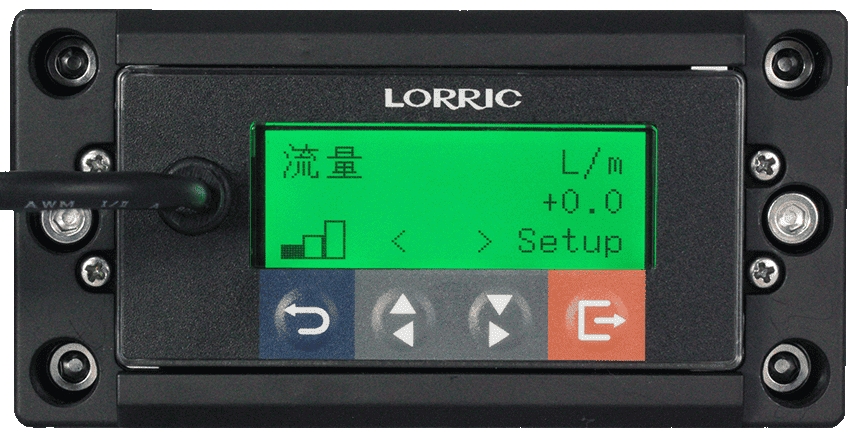
After setup, return to the main screen. If settings are correct, the flow rate will be displayed.\
Check the flow signal indicator at the lower-left corner:
* **1 bar**: Poor signal quality
* **< 1 bar**: Possible air bubbles or interference; **“Noisy”** may appear
If the signal is low, adjust the sensor installation according to the mounting guidelines and check whether the signal improves.
{% endstep %}
{% step %}
### **Main Screen Status Check**
After setup, return to the main screen. If settings are correct, the flow rate will be displayed.\
Check the flow signal indicator at the lower-left corner:
* **1 bar**: Poor signal quality
* **< 1 bar**: Possible air bubbles or interference; **“Noisy”** may appear
If the signal is low, adjust the sensor installation according to the mounting guidelines and check whether the signal improves.
 {% endstep %}
{% endstepper %}
### **Troubleshooting**
If any of the following issues occur during installation or setup, adjust the system as instructed.
{% endstep %}
{% endstepper %}
### **Troubleshooting**
If any of the following issues occur during installation or setup, adjust the system as instructed.
Rapid Fluctuating Readings
If flow readings fluctuate rapidly, adjust **A15 Damping** to reduce data swings. The default damping value is 3; higher values reduce fluctuations. Set according to desired measurement stability and response speed. Refer to [**A15 Damping**](/qr/fu-lt-english-v1/parameters/a-measurement-setup/a15-damping.md)
No Zero at Zero Flow
**Purpose:**
* Prevents false flow readings caused by signal drift at zero flow.
**Parameter Description:**
* **A18 = 0 (default):** Shows all very low flows; suitable for applications requiring detection of tiny flow.
* **A18 = X (user-defined):** Forces the reading to zero when flow < X.
**Recommended Setting:**
* For non-low-flow applications, set an appropriate cutoff value to improve zero stability and prevent flow display during stoppage.
* Refer to model-specific lower limit suggestions (examples).
**Model-Specific Lower Limit Recommendations (Example):**
* FU-LT 008 → 1 LPM
* FU-LT 010 → 1 LPM
* FU-LT 015 → 2.5 LPM
* FU-LT 020 → 2.5 LPM
* FU-LT 025 → 5 LPM
Refer to [A18 Low Flow Cutoff](/qr/fu-lt-english-v1/parameters/a-measurement-setup/a18-low-flow-cutoff.md)
Incorrect Positive/Negative Sign Display
If the flow meter shows the wrong sign, adjust the detection direction in [**A16 Direction**](/qr/fu-lt-english-v1/parameters/a-measurement-setup/a16-direction.md).
Unit Adjustment
To change the display unit, go to [**B Unit**.](/qr/fu-lt-english-v1/parameters/b-unit-setup.md)
### **Advanced Calibration Settings**
Refer to the full parameter table for detailed settings.\
See: [**Full Parameter Reference**](/qr/fu-lt-english-v1/parameters.md)
---
# Agent Instructions
This documentation is published with GitBook. GitBook is the documentation platform designed so that both humans and AI agents can read, navigate, and reason over technical content effectively. Learn more at gitbook.com.
## Querying This Documentation
If you need additional information that is not directly available in this page, you can query the documentation by asking a question.
Perform an HTTP GET request on the following URL with the `ask` and `goal` query parameters:
```
GET https://docs.lorric.com/qr/fu-lt-english-v1/installation-and-setup/parameter-settings.md?ask=&goal=
```
`ask` is the immediate question: it should be specific, self-contained, and written in natural language.
`goal` is what the user is ultimately trying to achieve, the reason they need the answer. Sharing it helps GitBook give you a better, more relevant answer. A goal is most helpful when it describes the outcome the user wants rather than restating the question. For example, with `ask=how do I create an API token`, a goal like `automate deployments from our CI pipeline` lets GitBook tailor the answer to that use case.
The response will contain a direct answer to the question and relevant excerpts and sources from the documentation.
Use this mechanism when the answer is not explicitly present in the current page, you need clarification or additional context, or you want to retrieve related documentation sections.