> For the complete documentation index, see [llms.txt](https://docs.lorric.com/qr/llms.txt). Markdown versions of documentation pages are available by appending `.md` to page URLs; this page is available as [Markdown](https://docs.lorric.com/qr/fp-as310-english-v5/user-interface/mo-ni-mo-shi.md).
# Simulation Mode
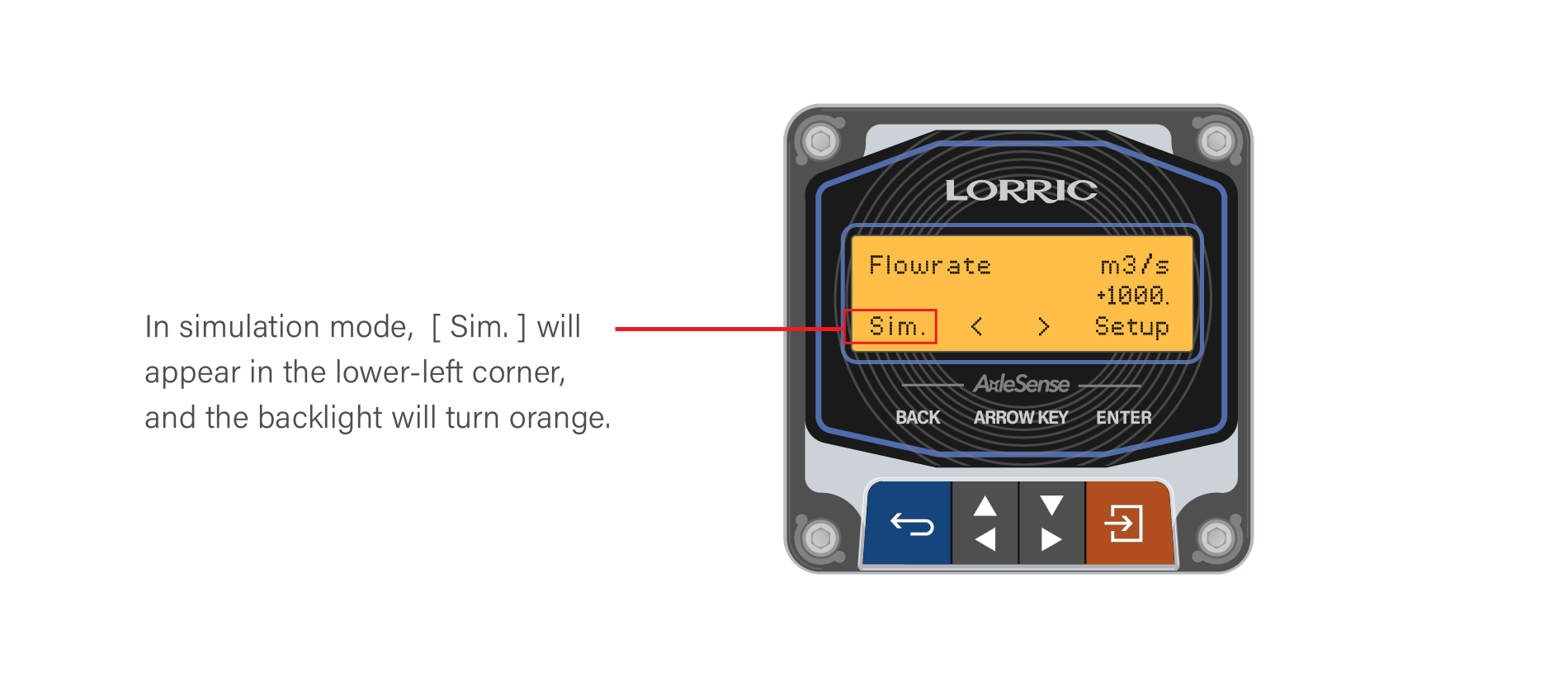
Disabled by default. When enabled, the flow setting displays the value defined in **F01 Sim. Volume**. In this mode, **OCT** (excluding pulses), **RS485**, and analog current outputs respond according to the simulated data, allowing verification of output values.
{% hint style="info" %}
If the **F02 simulation function** is enabled, all data displayed on the **main screen** will show **simulated values only**.\
In this mode, the **main screen backlight will remain amber (orange)** to indicate the simulation status.
{% endhint %}
{% hint style="danger" %}
* Enabling **Simulation Mode** may alter historical total flow. The main screen turns **orange** and relevant communication outputs must be active.
* When using 4–20 mA output, **E06 Iout Def.** must be enabled to display data.
{% endhint %}
Button Functions(Click to Expand)
The main unit has **four buttons**. The **bottom line (Line 3)** of the LCD displays the current function of each button. Under normal operation, the button functions are as follows:
* **Blue Button:** Leftmost button: Return, exit, or save settings.
* Gray Direction Buttons:
* **Left Gray:** Previous Page, decrease value, or select item
* **Right Gray:** Next Page, increase value, or select item
* **Orange Button:** Rightmost button: Enter settings, edit, or confirm selection
{% hint style="danger" %}
**Do not hold buttons for extended periods to avoid damage.**
{% endhint %}
{% hint style="info" %}
Button functions may change depending on the operation context to improve usability or prevent accidental presses
{% endhint %}
Simulation Mode Instructions(Click to Expand)
> **Simulation Mode** is used to output simulated flow values for testing communication and signals. Related parameters include F01 Sim. Volume and F02 Sim. Mode, and additional settings depending on communication type:
>
> * **4–20 mA:** **E06 Iout Def.**
> * **NPN Pulse:** **E01 NO/NC**, **E02 OCT Definition**
> * **RS485:** **E04 Modbus ID**, **E05 Baud Rate**
{% stepper %}
{% step %}
### F02 Turning on Simulation Mode
```
F02 Sim. Mode Setting Steps
• From the main screen (green backlight),
press Orange Button (Setup) to enter settings (orange backlight).
• Use Gray Arrow Buttons to select F. Simulate , press Orange Button (Enter).
• Use Gray Arrow Buttons to select F02 Sim. Mode, press Orange Button (Enter).
• Use Gray Arrow Buttons to choose the options.
• Press Orange Button (Set) to confirm.
• Press Blue Button (ESC) to return to the main screen (green backlight).
```
{% endstep %}
{% step %}
### F01 Simulated Flow Setting Procedure
```
F01 Sim. Volume Setting Steps
• From the main screen(green backlight),
press Orange Button(Setup) to enter settings (orange backlight).
• Use Gray Arrow Buttons to select F. Simulate, press Orange Button(Enter).
• Use Gray Arrow Buttons to select F01 Sim. Volume, press Orange Button(Enter).
• Use Gray Arrow Buttons to choose the digit to adjust(highlighted in dark gray).
• Press Orange Button(Edit) to enter adjustment mode.
• Adjust digits: Left Gray Button to increase, Right Gray Button to decrease.
• Press Orange Button(Set) to confirm each digit; repeat for other digits as needed.
• After all digits are set, press Blue Button(Save).
Confirm by pressing Orange Button(Save) (or Blue Button(NOT) to cancel).
• Press Blue Button(ESC) to return to the main screen(green backlight).
```
{% endstep %}
{% step %}
### **Communication-Based Parameter Settings**
#### For 4–20 mA Wiring, Enable **E06 Analog Output Definition**
```
E06 Iout Def. Setting Steps
• From the main screen (green backlight),
press Orange Button (Setup) to enter settings (orange backlight).
• Use Gray Arrow Buttons to select E. Commute , press Orange Button (Enter).
• Use Gray Arrow Buttons to select E06 Iout Def., press Orange Button (Enter).
• Use Gray Arrow Buttons to choose the options.
• Press Orange Button (Set) to confirm.
• Press Blue Button (ESC) to return to the main screen (green backlight).
```
#### For NPN Wiring, Enable E01 NO/NC and E02 OCT Definition
```
E01 NC/NO and E02 OCT Setting Steps
• From the main screen (green backlight),
press Orange Button (Setup) to enter settings (orange backlight).
• Use Gray Arrow Buttons to select E. Commute, press Orange Button (Enter).
• Use Gray Arrow Buttons to select E01 NC/NO, press Orange Button (Enter).
• Choose the options NC/NO, press Orange Button (Set).
• The screen returns automatically to E. Commute.
• Use Gray Arrow Buttons to select E02 OCT Info, press Orange Button (Enter).
• Press Blue Button (ESC) to return to the main screen.
(orange backlight indicates Simulation Mode is active)
• Verify at the receiving end that the corresponding OCT signal is output correctly.
```
E01 NC/NO
E02 OCT Setting Steps
#### For RS485 Wiring, Enable **E04 Modbus ID** and **E05 Baud Rate**.
```
E04 Modbus ID and E05 Baud Rate Setting Steps
• From the main screen (green backlight),
press Orange Button (Setup) to enter settings (orange backlight).
• Use Gray Arrow Buttons to select E. Commute, press Orange Button (Enter).
• Use Gray Arrow Buttons to select E04 Modbus ID, press Orange Button (Enter).
• Use Gray Arrow Buttons to adjust the Modbus ID, press Orange Button (Set).
• The screen returns automatically to E. Commute.
• Use Gray Arrow Buttons to select E05 Baud Rate, press Orange Button (Enter).
• Choose the options, press Orange Button (Set).
(Options: Off, 38400, 19200, 9600)
• Press Blue Button (ESC) to return to the main screen.
(orange backlight indicates Simulation Mode is active)
• Verify at the receiving end that the corresponding OCT signal is output correctly.
```
E04 Modbus ID
E05 Baud Rate
{% endstep %}
{% step %}
### **F02 Simulation Mode (Turn Off After Testing)**
If communication is normal, return to **F02 Simulation Mode** and turn it **off**. The main screen will return to **green backlight**.
{% endstep %}
{% endstepper %}
---
# Agent Instructions
This documentation is published with GitBook. GitBook is the documentation platform designed so that both humans and AI agents can read, navigate, and reason over technical content effectively. Learn more at gitbook.com.
## Querying This Documentation
If you need additional information that is not directly available in this page, you can query the documentation by asking a question.
Perform an HTTP GET request on the following URL with the `ask` and `goal` query parameters:
```
GET https://docs.lorric.com/qr/fp-as310-english-v5/user-interface/mo-ni-mo-shi.md?ask=&goal=
```
`ask` is the immediate question: it should be specific, self-contained, and written in natural language.
`goal` is what the user is ultimately trying to achieve, the reason they need the answer. Sharing it helps GitBook give you a better, more relevant answer. A goal is most helpful when it describes the outcome the user wants rather than restating the question. For example, with `ask=how do I create an API token`, a goal like `automate deployments from our CI pipeline` lets GitBook tailor the answer to that use case.
The response will contain a direct answer to the question and relevant excerpts and sources from the documentation.
Use this mechanism when the answer is not explicitly present in the current page, you need clarification or additional context, or you want to retrieve related documentation sections.
 **Orange Button:** Rightmost button: Enter settings, edit, or confirm selection
{% hint style="danger" %}
**Do not hold buttons for extended periods to avoid damage.**
{% endhint %}
{% hint style="info" %}
Button functions may change depending on the operation context to improve usability or prevent accidental presses
{% endhint %}
**Orange Button:** Rightmost button: Enter settings, edit, or confirm selection
{% hint style="danger" %}
**Do not hold buttons for extended periods to avoid damage.**
{% endhint %}
{% hint style="info" %}
Button functions may change depending on the operation context to improve usability or prevent accidental presses
{% endhint %}


